Every video export asks the same three questions: what resolution, what frame rate, what bitrate. They sound similar, but each controls something different, and changing the wrong one is how a video ends up huge, blurry or juddery.
Resolution: how much detail fits in the frame
Resolution is the number of pixels in each frame. Common sizes are 720p (1280 × 720), 1080p or Full HD (1920 × 1080) and 4K (3840 × 2160). For a vertical video the numbers swap, so 1080p vertical is 1080 × 1920.
More pixels can hold more detail, but only if the screen shows them and the bitrate is high enough to fill them. On a phone, the difference between 1080p and 4K is hard to see.
Frame rate: how smooth the motion is
Frame rate is how many frames play each second. 24 fps is the traditional film look, 30 fps is the phone and social default, and 60 fps makes motion smoother, which suits sport, games and slow motion.
Keep the frame rate you recorded. Raising it does not add real smoothness, because the extra frames are copies. Lowering it can make movement look jerky. Change it only when a destination requires a particular rate.
Bitrate: how much data each second gets
Bitrate is the amount of data used for each second of video, usually measured in megabits per second (Mbps). It is the setting that most directly controls both quality and file size: file size is roughly bitrate multiplied by duration.
Too low a bitrate shows up as blocks and smearing, especially in fast motion, water, leaves and confetti. Too high just wastes space.
How the three work together
The bitrate is shared out across all the pixels in all the frames. Raise the resolution or the frame rate and each pixel gets less data, unless the bitrate rises too. That is why a 4K video at a low bitrate can look worse than a 1080p video at a sensible one.
The codec matters as well. HEVC needs noticeably less bitrate than H.264 for similar quality, which is why HEVC files are smaller, though not every device plays them.
What to change for which job
- File too big to send: lower the resolution first, then the bitrate, or set a target size.
- Video looks blocky: raise the bitrate, or lower the resolution so the same bitrate covers fewer pixels.
- A platform rejects the file: check its required frame rate and resolution, and convert to MP4 with H.264.
- Archiving the original: keep the resolution and frame rate, and use a high bitrate or HEVC to save space.
Setting them in Creovia Convert
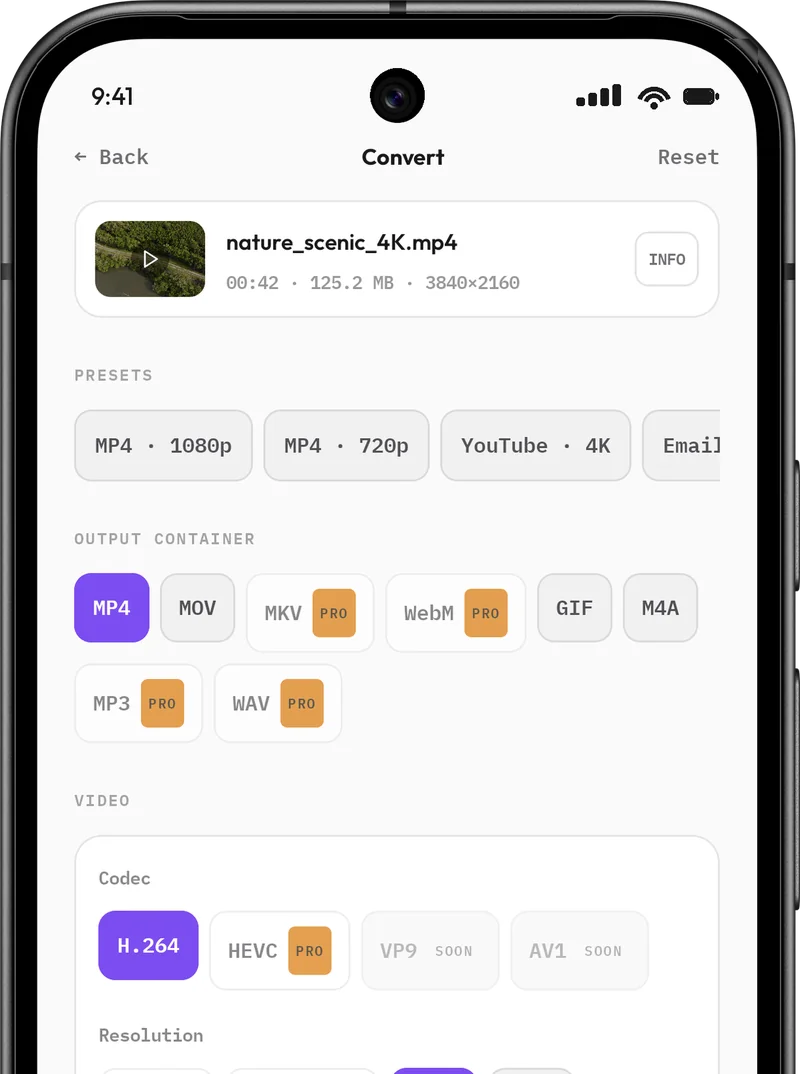
Creovia Convert puts all three in one place. Choose a standard resolution, type a custom size with the aspect locked, or keep the original; keep the frame rate or pick 24, 30 or 60; and set quality by level, by bitrate in Mbps, or by a target file size. The estimated output size updates as you change them, before anything is encoded, and the conversion runs on your phone.
Quick answers
- Does higher resolution mean better quality?
- Only if the bitrate is high enough and the screen can show the extra detail. A 1080p video at a good bitrate often looks better on a phone than a starved 4K one.
- What is a good bitrate for 1080p video?
- It depends on the codec and how much movement there is. Rather than guessing a number, pick a high-quality preset or a target size and compare the result on the screen it will be watched on.
- Should I use 30 or 60 fps?
- Use the frame rate you recorded. 60 fps suits fast motion and slow motion; 30 fps is standard for most phone video.
- What affects video file size the most?
- Bitrate and duration. Resolution matters because higher resolutions usually need a higher bitrate to look good.