A minute of phone video can be hundreds of megabytes: too big to email, slow to upload and quick to fill your storage. Compressing it fixes that, and if you choose the right settings most people will never see a difference.
This article explains where the size comes from, which settings to change, and in what order.
Why video files are so big
A video's size is roughly its bitrate multiplied by its length. Bitrate is how much data each second of video uses, and phones record at a high bitrate so the original keeps every detail.
Compressing means choosing a lower bitrate, sometimes together with a smaller resolution or a more efficient codec. The video gets re-encoded: the picture is rebuilt to fit the smaller budget.
What "without losing quality" really means
Any re-encode throws some data away. The goal is to throw away only what nobody notices on the screen the video will be watched on. A clip shown on a phone does not need the data of a 4K master, and the difference is invisible at that size.
1. Trim first
The easiest saving is the part you do not need. Cut dead time at the start and end before you compress: half the length is half the size, with no quality cost at all.
2. Match the resolution to the screen
If the video will be watched on phones or in a chat app, 1080p is plenty, and 720p is often fine. Dropping from 4K to 1080p removes most of the data while keeping the picture sharp on a phone.
3. Lower the bitrate, or aim for a target size
You can pick a quality level, set a bitrate yourself, or tell the compressor the file size you need. A target size is the most practical when there is a hard limit, such as an email attachment: the compressor works out the bitrate that will land there.
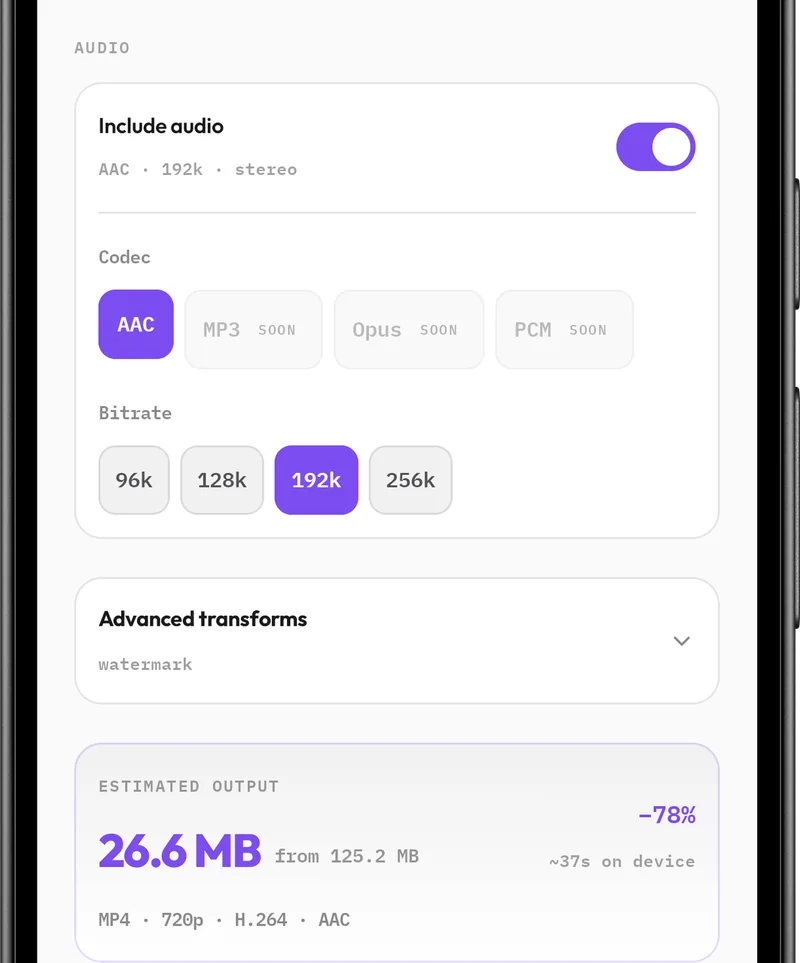
Look for a compressor that shows the estimated size before it starts, so you are not guessing.
4. Use a more efficient codec where it is supported
H.264 plays almost everywhere. HEVC, also called H.265, gives similar quality at a noticeably smaller size, but some older devices and websites cannot play it. Use HEVC when you know where the file is going, and H.264 when you are not sure.
5. Keep the frame rate, check the audio
Keep the original frame rate; changing it causes stutter. Audio is a small part of the file, but if the video is mostly speech, a lower audio bitrate saves a little more.
On your phone or online?
Online compressors make you upload the whole large file and download the result, which is slow on mobile data. They also mean your video sits on someone else's server. A compressor that runs on the phone avoids both: the file never leaves the device, and it works without a connection.
Compressing with Creovia Convert
Creovia Convert compresses on your phone using its own video hardware. Pick the video, choose a quality, a bitrate or a target size in MB, and check the estimated size and saving before you start. You can leave the app while it works; a notification shows the progress. When it finishes, you see the size before and after, then save or share the file.
Quick answers
- Does compressing a video reduce its quality?
- It removes some data, but with sensible settings (the right resolution for the screen and a reasonable bitrate) the difference is not visible in normal viewing.
- How do I make a video small enough to email?
- Trim it, then compress it to a target size a little under your email service's attachment limit. A compressor that works backwards from a target size does the maths for you.
- Is HEVC better than H.264?
- HEVC makes smaller files at the same quality, but not every device plays it. Use H.264 when you are not sure where the video will be watched.
- Can I compress a video without uploading it?
- Yes. On-device compressors such as Creovia Convert process the file on your phone, so nothing is uploaded.