Phone cameras record beautiful, enormous files. Then you try to email one, or send it in a chat, and it is too big, takes forever, or arrives looking like it was filmed through a frosted window.
Here is why that happens and what to do about it.
Why sending video goes wrong
Every route has a size limit. Email attachments are small. Chat apps accept bigger files, but to save data many of them quietly re-compress videos, often hard, which is why a sharp clip arrives soft and blocky. Some apps let you send a video as a document or file instead, which keeps the quality but runs into a size cap of its own.
So the choice is: make the file smaller in a way you control, or send a link instead of the file.
1. Trim it
The fastest win costs no quality at all. Cut the parts nobody needs, especially the start and end. Half the length is roughly half the size.
2. Lower the resolution
If the person will watch on a phone, they do not need 4K. 1080p looks sharp on a phone screen and is a fraction of the size, and 720p is often fine for a quick share. Resolution is the bluntest and most effective way to shrink a file.
3. Compress to the size you need
When there is a hard limit, a compressor that works from a target size is the easiest tool: tell it the size you need to fit under, and it works out the bitrate. Aim a little under the limit to leave room.
Compressing yourself is better than letting a chat app do it, because you choose where the quality goes instead of accepting whatever the app decides.
4. Or share a link
For long videos, or when the person needs the full original, upload the file to cloud storage and send the link. Nothing gets compressed, there is no attachment limit, and the other person can download it when they are on Wi-Fi. It does mean the file sits on a server, so think about what is in it.
Which way to choose
- A short clip to a friend: trim, then compress or resize so the chat app does not do it for you.
- An email attachment: compress to a target size under the limit.
- Several clips at once: convert them together, then send.
- The full-quality original: share a link.
Doing it on your phone with Creovia Convert
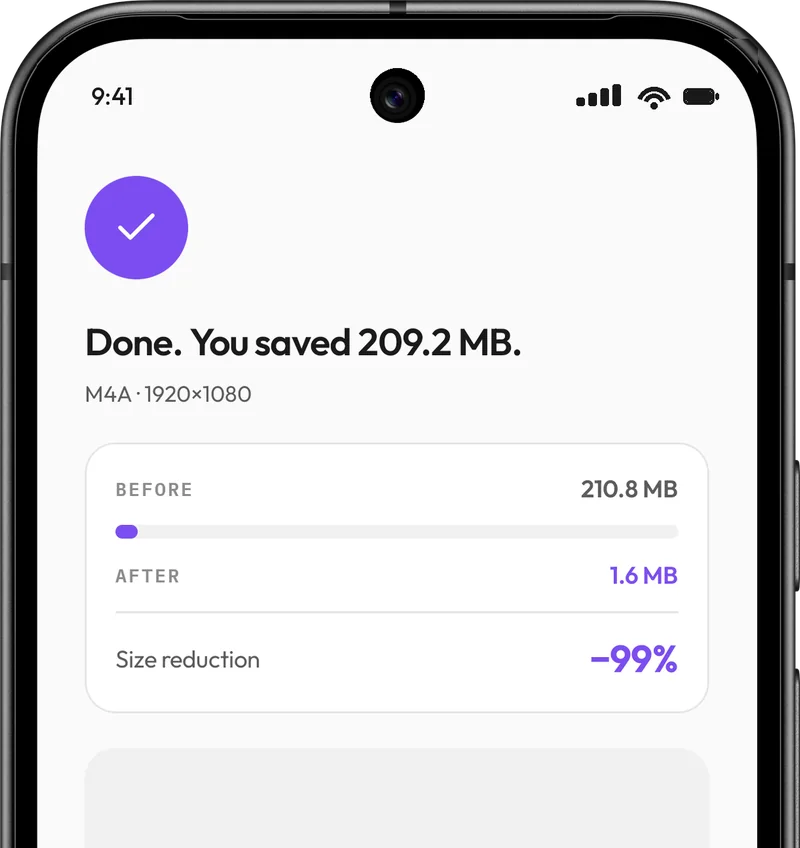
Creovia Convert does the shrinking on your phone, so the large original never has to be uploaded first. Trim the clip, choose a resolution, and compress by quality, bitrate or a target size in MB, with the estimated size shown before you start. You can leave the app while it works, and share the result straight from the finish screen, which shows the size before and after.
Quick answers
- Why does my video look blurry after I send it?
- Many chat apps re-compress videos to save data. Compress or resize the video yourself first, or send it as a file or a link, to keep control of the quality.
- How can I email a video that is too large?
- Trim it and compress it to a target size a little under your email service's attachment limit, or upload it to cloud storage and email the link.
- Does reducing the resolution make a video look worse?
- On the screen it will be watched on, usually not. A 1080p video looks sharp on a phone, and it is far smaller than 4K.
- Can I make a video smaller without uploading it?
- Yes. An on-device converter such as Creovia Convert compresses the file on your phone, so it never leaves the device.