You do not need a laptop to make a good video. The phone that shot the clips can cut them together, and the steps are the same ones an editor follows on a big screen: choose what matters, cut away the rest, give it a rhythm and finish it so it looks deliberate.
This guide walks through those steps in order. The advice works in any editing app; where it helps, we show how it looks in Creovia Creator, our free video and photo editor for Android.
1. Decide what the video is about
Before you open an editor, say in one sentence what the viewer should feel or learn. "Our weekend at the beach" is a topic; "the moment the kids saw the sea" is a story. The sentence tells you which clips earn a place and which are just there.
Short videos work best with one idea. If you have two, make two videos.
2. Bring in your clips and do a rough cut
Add every clip you might use, in roughly the order things happened. Then go through once and cut each clip down to its best part. Do not polish yet; the goal is a first version from start to finish.
Trim from both ends: most clips start too early and end too late. Split a clip where something dull happens in the middle and delete that piece.
3. Set the pace
Watch the rough cut without stopping. Wherever your attention drifts, the shot is too long. Shorten it, or move something stronger in front of it.
Change the length of shots on purpose: a run of quick shots builds energy, and one longer shot lets a moment land. Slowing a single action down, or easing in and out of a speed change, draws the eye to it.
4. Add sound: music, voice and the original audio
Sound carries a video more than people expect. Pick music that matches the mood and cut to it: changing shots on a beat makes even simple footage feel edited.
Keep the original sound where it matters, like laughter or a wave breaking, and turn the music down underneath it. If you explain something, record a voice-over after the edit so you can match your words to the pictures.
5. Add text sparingly
A title, a place name or a short caption helps, as long as it stays on screen long enough to read. Use one or two fonts across the whole video, keep text away from the edges, and make sure it contrasts with what is behind it.
6. Make the colour consistent
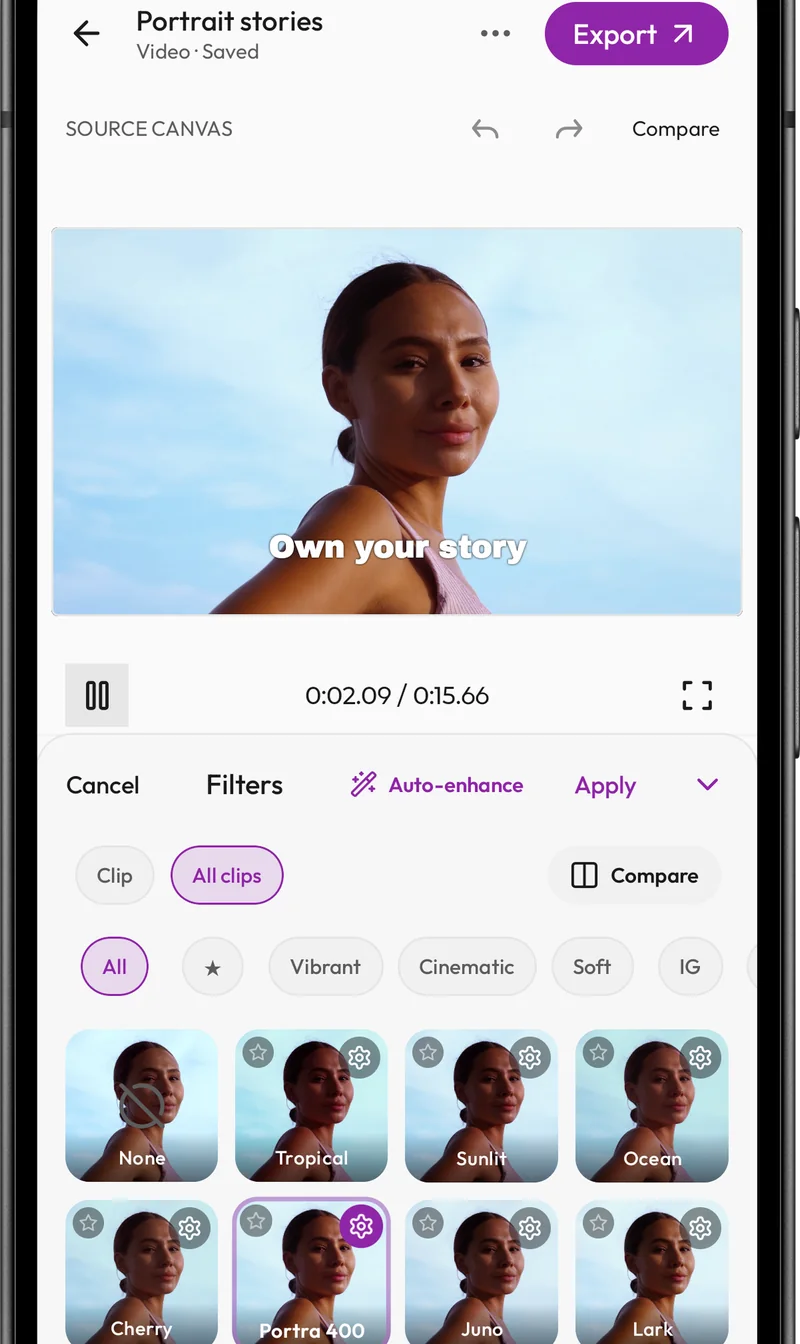
Clips shot at different times or on different phones rarely match. Apply one filter to every clip for a single look, then fix the odd one out with brightness, contrast or warmth.
Go easy on strength. A filter at half strength usually looks more natural than one at full.
7. Use transitions only where they mean something
Most cuts should be straight cuts. A transition says "time has passed" or "we are somewhere else", so save it for those moments. One style used throughout looks more professional than a different effect on every join.
8. Choose the shape, then export
Pick the frame for where the video will be watched: tall 9:16 for Reels, TikTok and Shorts, 4:5 for an Instagram feed post, square for some feeds, and wide 16:9 for YouTube. Check that nothing important falls outside the new frame.
When you export, choose a quality preset for the destination. A good editor tells you the estimated file size before you start, so you can pick a smaller setting if you need to send the file.
Common beginner mistakes
Almost every first edit has a few of these. Check yours before you share it:
- The opening seconds are slow. Start with the strongest shot.
- Every clip is the same length, so nothing stands out.
- The music drowns out voices.
- Text disappears before it can be read.
- Several filters and transitions fight each other instead of one consistent style.
Edit it in Creovia Creator
Creovia Creator follows exactly this order. You trim and split on a timeline, add music, voice-over and text, apply filters and effects to one clip or all of them, and choose the shape and quality when you export. What you see in the preview is what ends up in the file, and editing happens on your phone, with no account needed.
Quick answers
- Can you make a professional-looking video on a phone?
- Yes. What makes a video look professional is the edit: tight cuts, steady pacing, clean sound and consistent colour. All of that is possible in a phone editor.
- What is the easiest way to start editing videos?
- Do a rough cut first: put your clips in order and trim each one to its best part. Then add music, then text, then colour. Working in that order stops you polishing clips you later delete.
- Do I need to upload my videos to edit them?
- Not with an on-device editor. Creovia Creator edits the files on your phone, so your footage is not uploaded to edit it.
- How long should a short video be?
- As long as it stays interesting and no longer. For social clips that is often well under a minute; cut anything that does not move the story forward.