Editing tutorials assume you already speak the language: "add some B-roll", "use a J-cut", "keyframe the scale". None of it is hard once someone explains it, and knowing the words makes every tutorial and every editing app easier to follow.
Here are the terms you will meet most often, grouped by what they are about.
The picture: shape, size and smoothness
These describe the video file itself, and you choose them when you start a project or export it.
- Aspect ratio: the shape of the frame, written as width to height. 9:16 is tall (Reels, TikTok, Shorts), 16:9 is wide (YouTube, TVs), 1:1 is square and 4:5 is a tall feed post.
- Resolution: how many pixels make up the frame, such as 1080 × 1920. More pixels hold more detail and make bigger files.
- Frame rate (fps): how many pictures play each second. 24 feels cinematic, 30 is standard for phones, 60 looks smooth and is good for sport and slow motion.
- Bitrate: how much data each second of video uses. Higher bitrate keeps more detail; it is the biggest factor in file size.
- Codec: the method used to compress the video, such as H.264 or HEVC. The container (MP4, MOV) is the box the compressed video sits in.
The workspace: timeline, clips and cuts
The timeline is the strip where your video is laid out from left to right, with the playhead marking the current moment. Each piece of footage on it is a clip.
- Trim: shorten a clip from its start or end.
- Split: cut a clip in two at the playhead, usually so you can delete or move one part.
- Rough cut: the first complete version, with every clip in order but nothing polished.
- Fine cut: the rough cut tightened shot by shot until the pace feels right.
- Overlay or layer: anything sitting on top of the main video, such as text, a sticker or a second clip.
Kinds of shot and kinds of cut
Editors talk about how one shot hands over to the next, because that is where most of the craft lives.
- A-roll and B-roll: A-roll is the main footage, such as someone talking to camera. B-roll is the supporting footage you cut to while they keep talking.
- Cutaway: a quick cut to something else, such as a reaction or a detail, before returning to the main shot.
- Jump cut: a cut between two moments of the same shot, so the subject seems to jump forward in time. Common in talking-head videos to remove pauses.
- Match cut: a cut between two shots that share a shape, movement or colour, so the change feels connected.
- J-cut and L-cut: the sound changes at a different moment from the picture. In a J-cut you hear the next shot before you see it; in an L-cut the sound of a shot carries on after the picture has moved on.
- Transition: any effect that joins two clips other than a straight cut, such as a dissolve, slide or zoom.
Movement and time
These are about changing what happens over time, rather than what is in the frame.
- Keyframe: a marker that stores a setting, such as position or size, at one moment. Set two keyframes and the editor animates smoothly between them.
- Speed ramp: a speed change that eases in and out instead of jumping, such as a clip that slows down for one moment and speeds up again.
- Freeze frame: a single frame held still for a while.
- Reverse: playing a clip backwards.
Colour and look
Colour work has two halves, and people often mix them up.
- Colour correction: fixing problems so the picture looks natural, such as exposure, white balance and contrast.
- Colour grading: giving the video a deliberate mood, such as warm and nostalgic or cool and moody.
- Filter or LUT: a saved colour transformation you apply in one step. LUT stands for lookup table.
- Mask: a shape that limits where an effect applies, such as a grade on the sky only. A feathered mask has a soft edge.
- Vignette: a gentle darkening towards the corners that draws the eye to the centre.
Sound
- Voice-over: narration recorded separately and laid over the pictures.
- Ducking: lowering the music automatically or by hand while someone speaks.
- Fade in and fade out: sound or picture rising from silence or black, or falling away to it.
- Cut on the beat: changing shots in time with the music.
Finishing
- Render or export: turning the project into a finished video file.
- Preset: a saved set of export settings for a destination, such as a social platform.
- Safe zone: the part of the frame that a platform will not cover with its own buttons and captions.
- Draft: an unfinished project saved so you can come back to it.
Where these show up in Creovia Creator
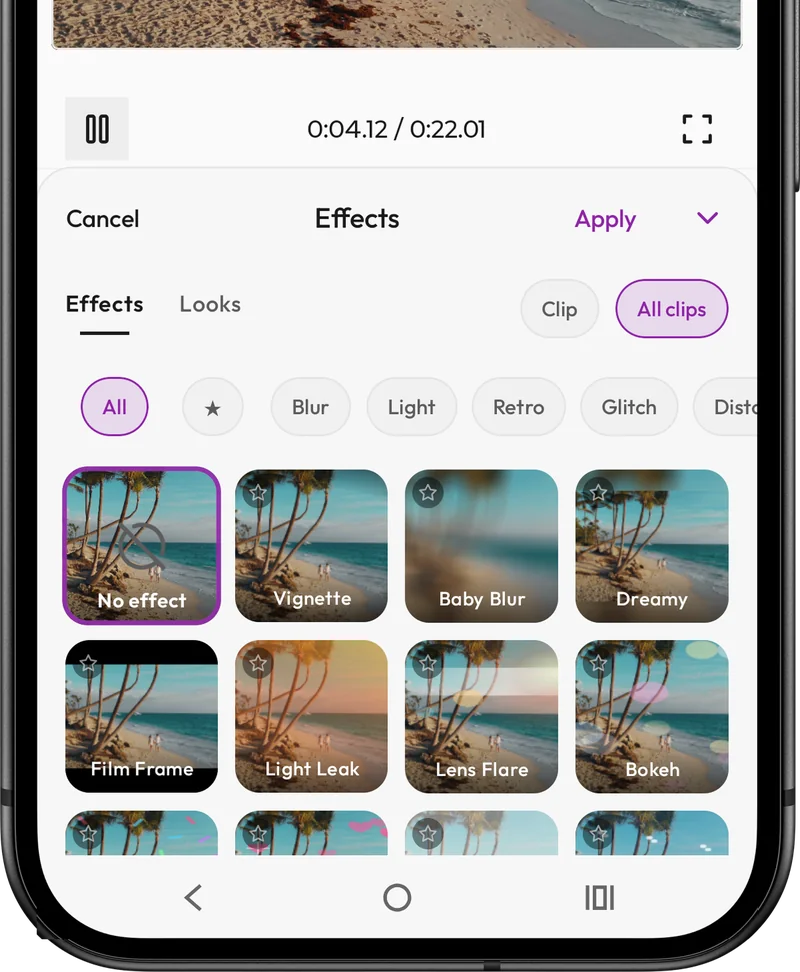
Most of these words map straight onto controls in Creovia Creator. You trim and split clips on a timeline, add text and stickers as overlays, change speed per clip, join clips with transitions, animate position, scale and rotation with keyframes, limit effects with feathered masks, and grade with filters and manual adjustments. Projects save as drafts automatically, and the export lets you pick the shape and quality.
Quick answers
- What is B-roll in video editing?
- B-roll is supporting footage you cut to while the main footage, such as someone speaking, carries on underneath. It keeps the video visually interesting and hides cuts in the speech.
- What is the difference between a J-cut and an L-cut?
- In a J-cut, the sound of the next shot starts before its picture. In an L-cut, the sound of the current shot continues after the picture has changed. Both make cuts feel smoother.
- What is a keyframe?
- A keyframe stores a setting, such as size or position, at a moment in time. With two keyframes, the editor animates smoothly from one setting to the other.
- What is the difference between resolution and bitrate?
- Resolution is how many pixels are in each frame; bitrate is how much data each second of video uses. A high resolution with too low a bitrate still looks blocky.