A blurred background makes the person in a photo stand out. Cameras with big lenses do it optically; phones mostly do it with software. Either way, a few choices make the difference between a photo that looks like a portrait and one that looks cut out.
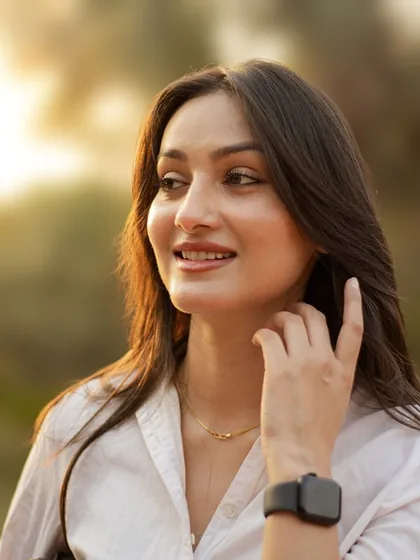
Why background blur works
The eye goes to whatever is sharpest. Blur everything behind the subject and nothing competes with them: busy streets, clutter and other people fade into soft shapes and colour.
1. Shoot for it
Even with software blur, the setup helps. Put distance between the person and the background, get reasonably close to the person, and use the phone's longer lens if it has one. Real depth makes any blur, real or added, look more natural.
2. Use portrait mode when you can
Most phones have a portrait mode that estimates depth and blurs the background as you shoot. It works best on people at a normal distance in good light, and less well on fine hair, glasses and busy edges.
3. Add the blur afterwards
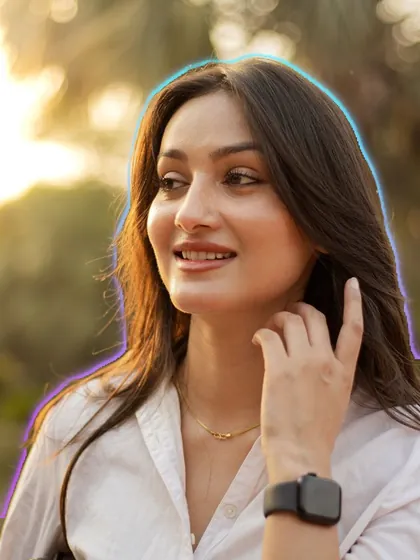
If you forgot portrait mode, or you only have a normal photo, an editor that can find the person in the frame can blur everything else. Good subject detection is what matters: the blur should stop at the edge of the person, not eat into their hair or leave a halo of sharp background around them.
How to make it look real
- Do not overdo the strength. Gentle blur reads as a lens; heavy blur reads as an edit.
- Check the edges: hair, ears, hands and glasses are where software blur gives itself away.
- Keep anything touching the person, like a chair they lean on, at a believable level of sharpness.
- Set the colour first, then the blur, so the subject and background share one look.
Other ways to make the subject stand out
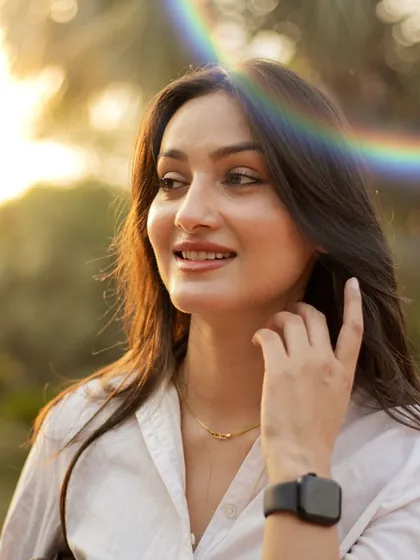
Blur is not the only option. A soft glow around the person, a bright outline, or a darker, cooler background with warm skin all pull the eye to the subject. Use one at a time.
Blurring the background with Creovia FX
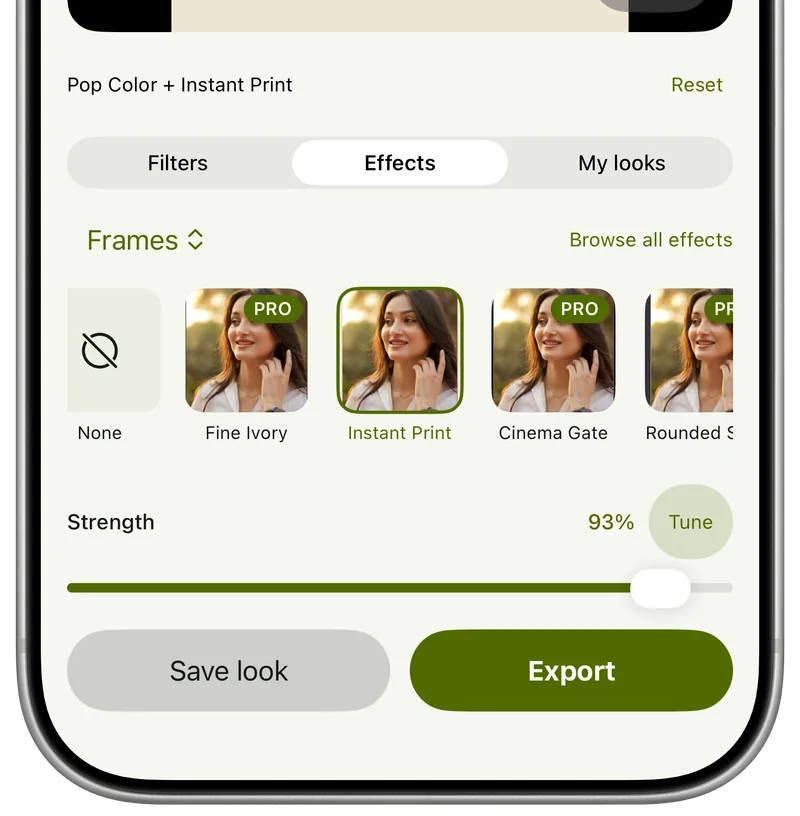
Creovia FX finds the person in the photo on your phone and applies subject effects around them, including Portrait Blur for the background, Body Glow and Neon Outline. Each effect has its own strength, you can add a colour filter underneath, and Compare shows the original at a tap. Nothing is uploaded. FX is coming soon to Android, iPhone and iPad.
Quick answers
- How do I blur the background of a photo I have already taken?
- Use an editor that detects the person in the photo and blurs the rest, then lower the strength until it looks like a real lens.
- Why does my background blur look fake?
- Usually the blur is too strong, or the edges around hair and hands are wrong. Use a gentler blur and check the edges closely.
- Can I blur the background without portrait mode?
- Yes. Shoot with distance behind the subject for some natural blur, or add the blur afterwards with a subject-aware editor.
- Is my photo uploaded when I blur the background?
- Not with an on-device editor. Creovia FX detects the person and applies the blur on your phone.